| title | Summary of Useful GitHub Tips | |
|---|---|---|
| category | Development Tools | |
| tag |
|
I have been using GitHub for over 6 years, and today I am sharing some useful GitHub tips that I believe will be helpful for everyone following JavaGuide.
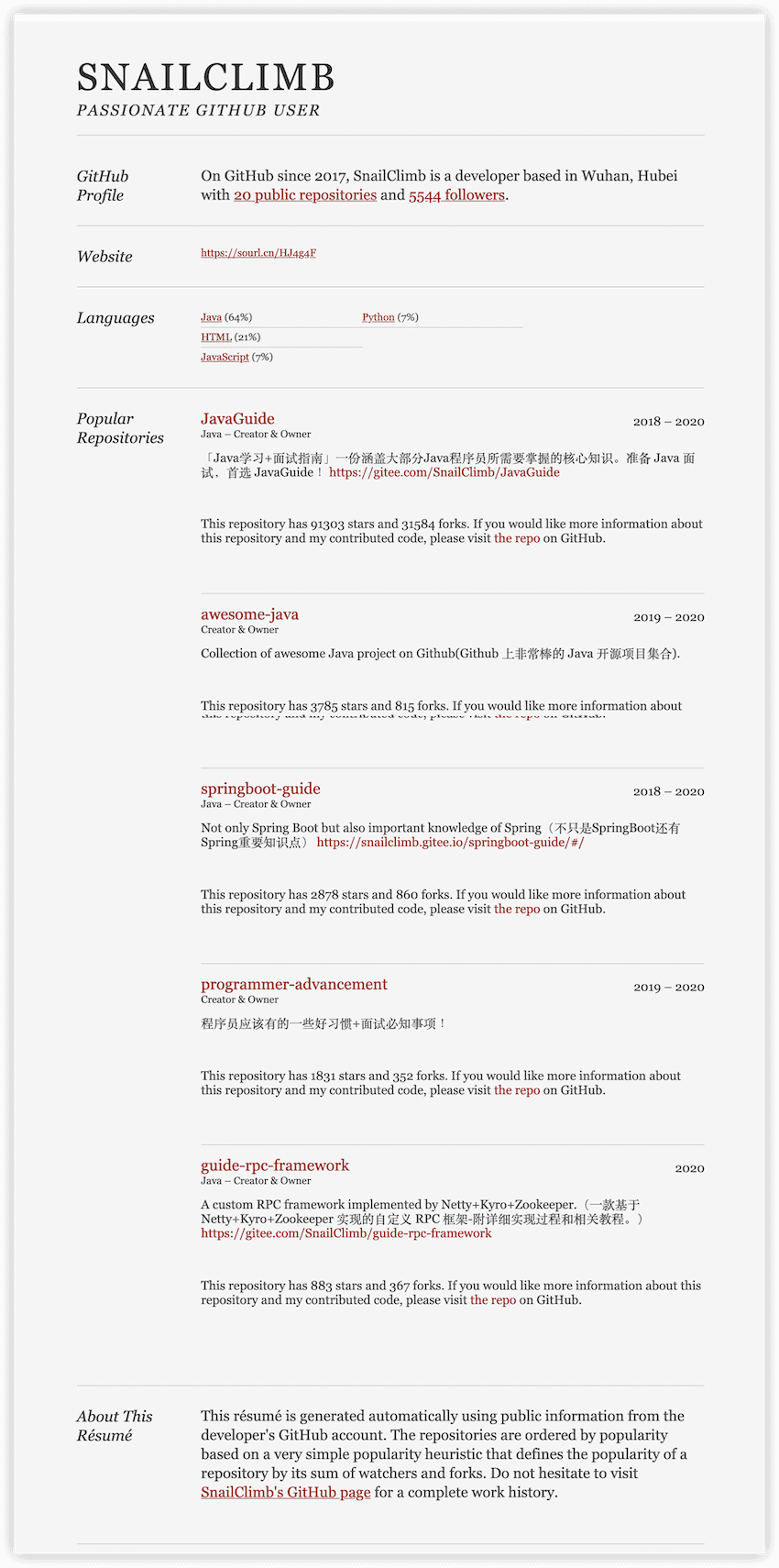
You can generate an online GitHub resume with one click through https://resume.github.io/.
When I participated in campus recruitment, I included an online GitHub resume in my personal information. I believe this gives interviewers the impression that you are knowledgeable, which can enhance your overall impression.
However, if you don't have any projects on your GitHub, it's better not to include it in your resume. The generated result is shown in the image below.
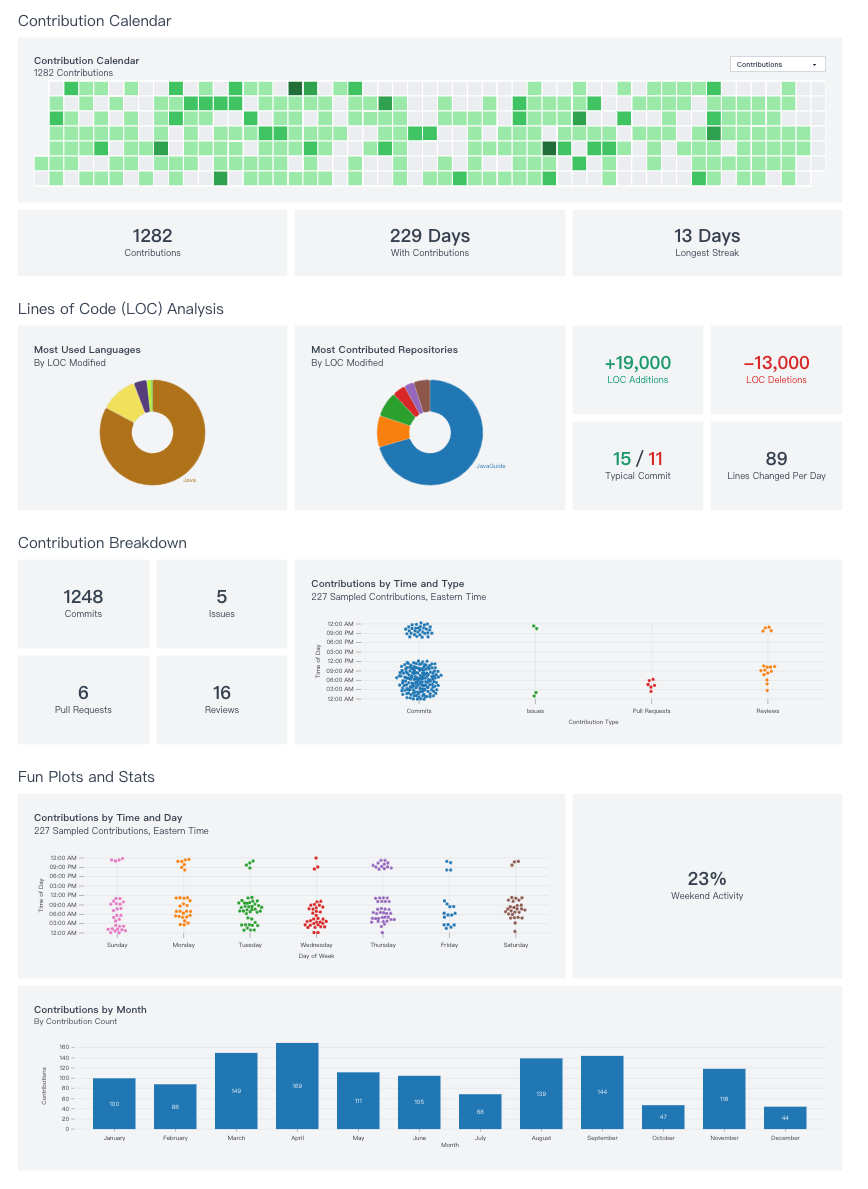
Through https://www.githubtrends.io/wrapped, you can generate a personal annual report for GitHub, which lists your project contributions for the year, your most used programming languages, and detailed contribution information.
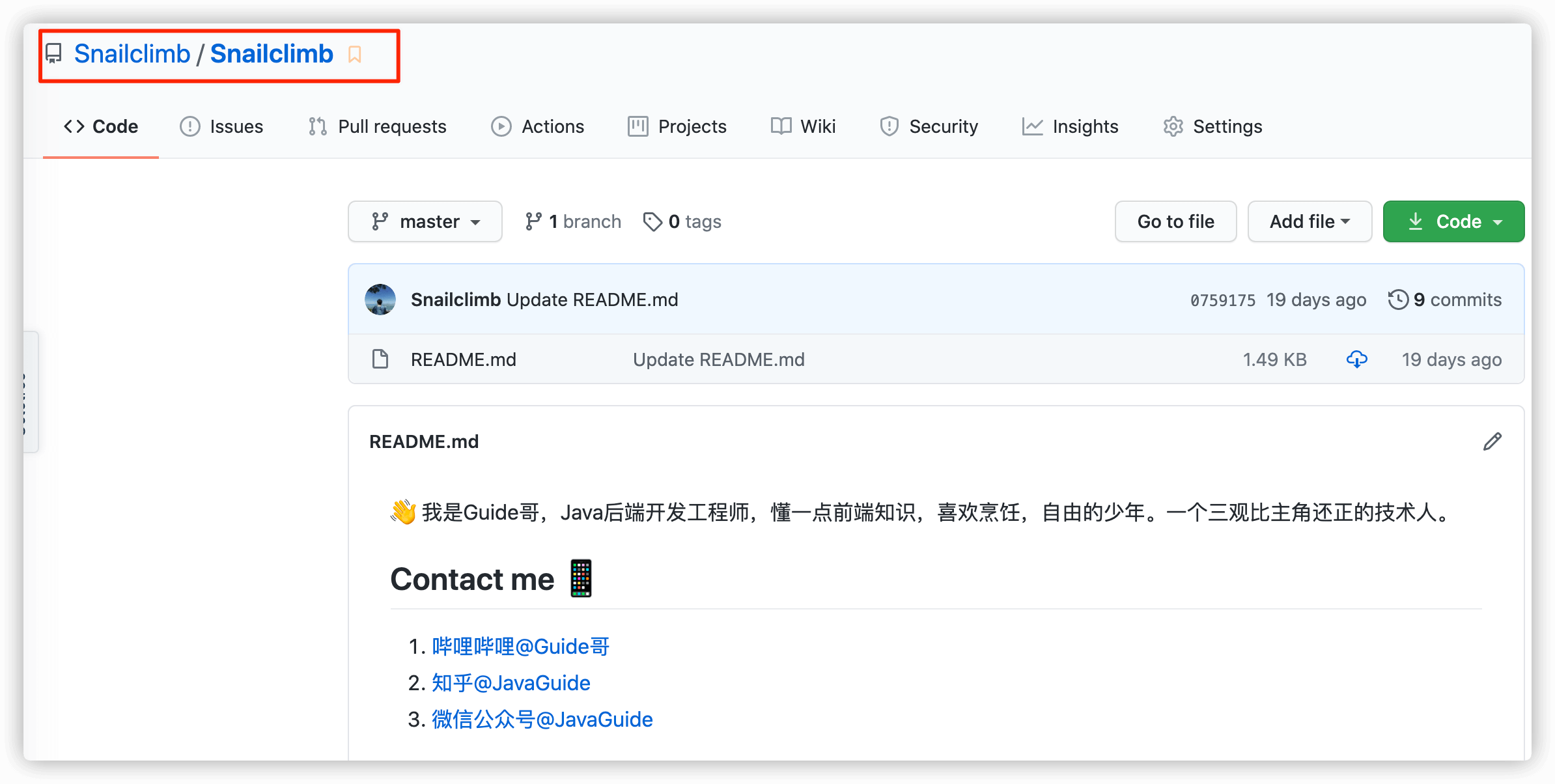
GitHub currently supports customizing the display of certain content on your personal homepage. The display effect is shown in the image below.

Achieving this is very simple; you just need to create a repository with the same name as your GitHub account and customize the content of README.md.
The custom content displayed on your homepage is the content of README.md (for those who are not familiar with Markdown syntax, take a 5-minute break).
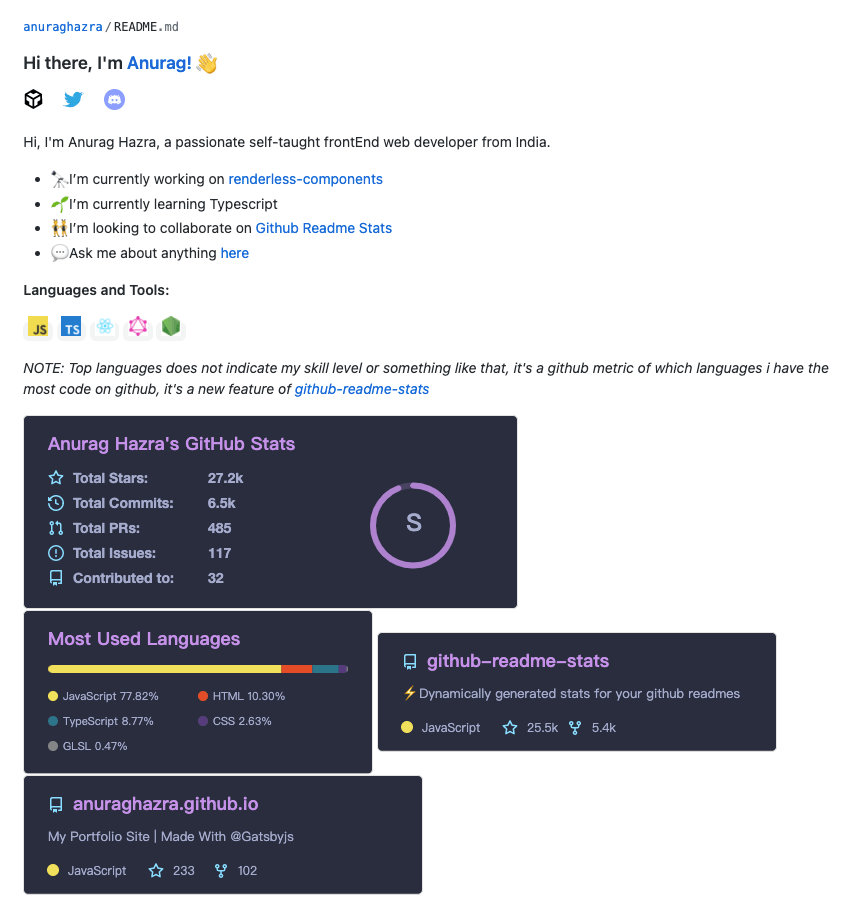
This can also be quite creative! For example, through the open-source project github-readme-stats, you can display dynamically generated GitHub statistics in your README. The display effect is shown in the image below.
I won't elaborate further on personalized homepages; interested friends can explore it themselves.
The project badges you see on GitHub are generated through https://shields.io/. The badges for my JavaGuide project are shown in the image below.
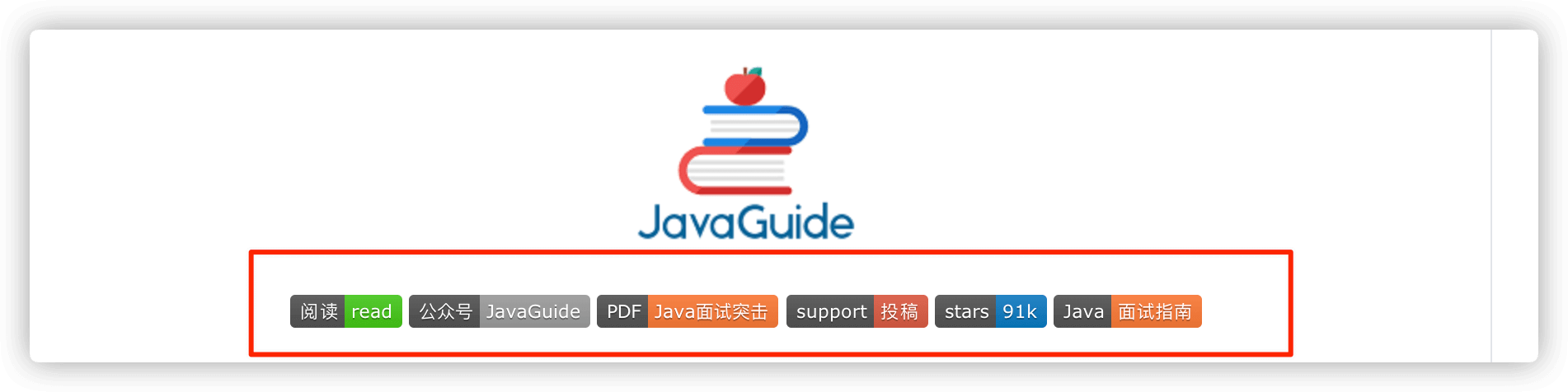
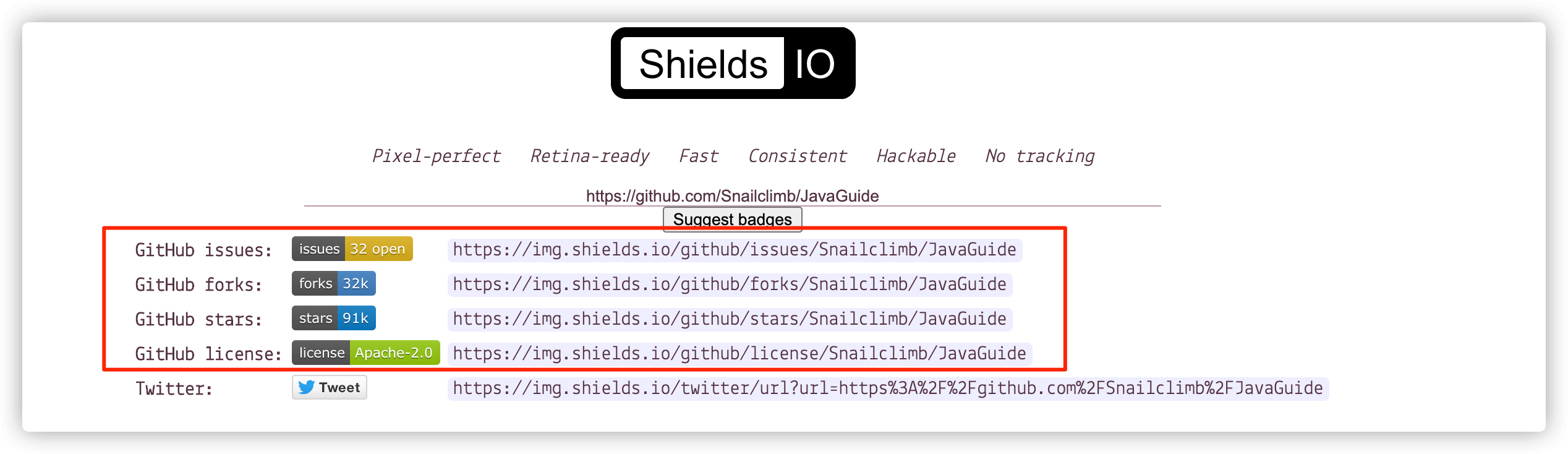
Moreover, you can not only generate static badges, but shield.io can also dynamically read the status of your project and generate corresponding badges.
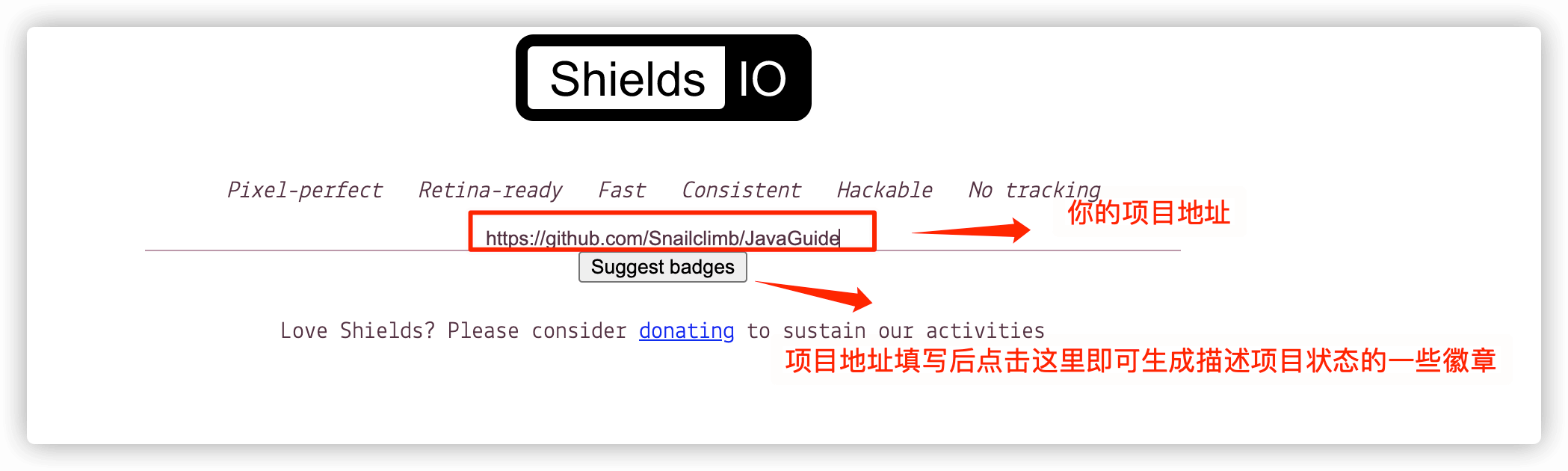
The generated badges describing the project status are shown in the image below.
Using the tool repobeats, you can add basic contribution charts to GitHub projects, which is quite nice 👍
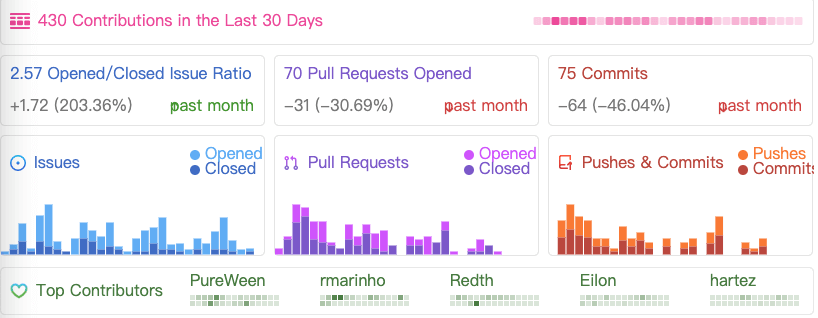
Address: https://repobeats.axiom.co/.

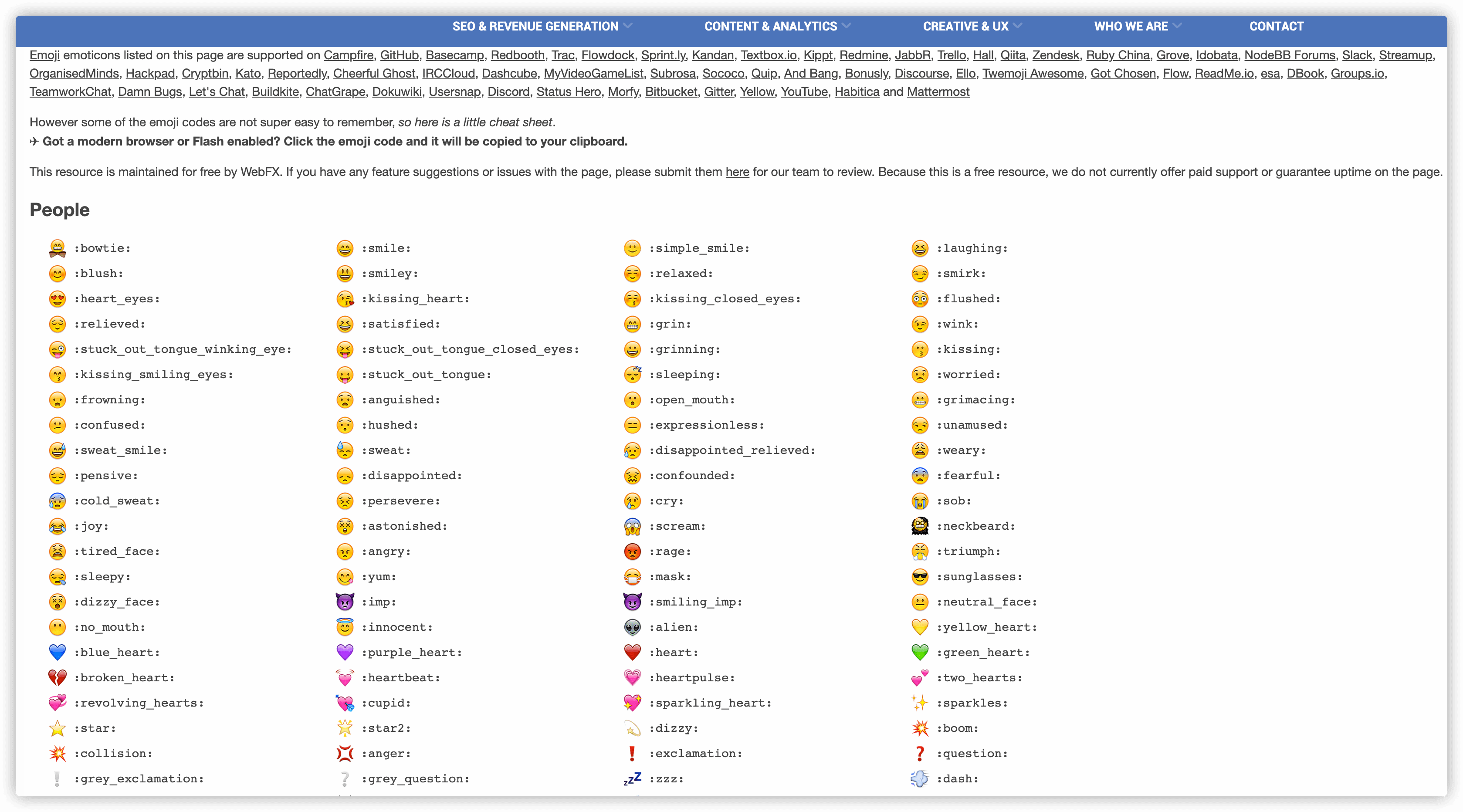
If you want to use emojis on GitHub, you can find them here: www.webfx.com/tools/emoji-cheat-sheet/.
Recently, GitHub launched Codespaces, which provides an online IDE similar to VS Code, but it is not fully developed yet.
Here are a few ways I commonly use to read source code of GitHub projects.
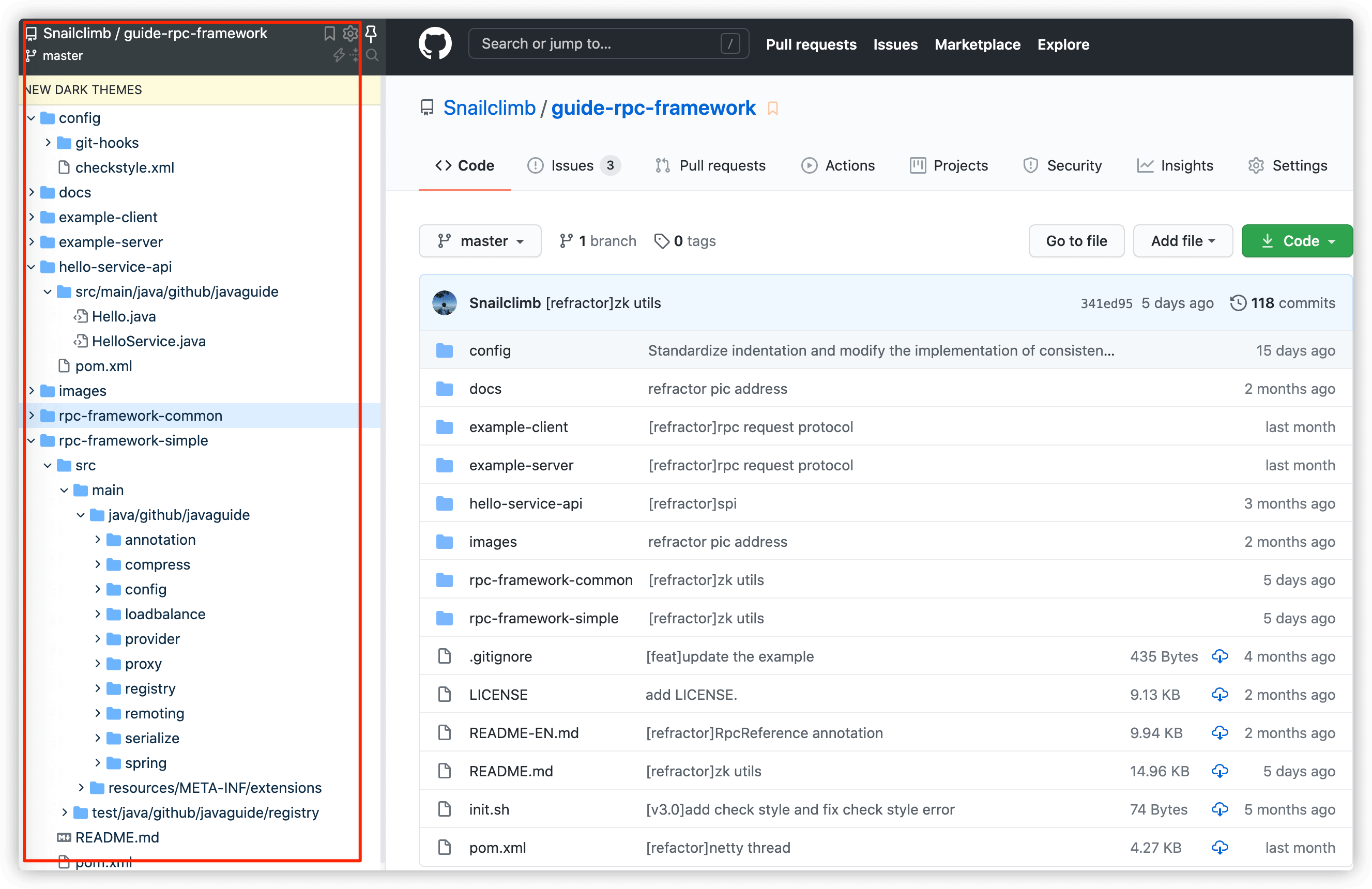
This is a well-known method and one of my favorites. After using Octotree, the webpage sidebar displays the project in a tree structure, giving us an IDE-like experience for reading source code.
When I