---
title: Introducing Custom Events
---
## Custom Events
We’re all familiar with the basic events — click, mouseover, focus, blur,
submit, etc. — that we can latch on to as a user interacts with the browser.
Custom events open up a whole new world of event-driven programming. In this
chapter, we’ll use jQuery’s custom events system to make a simple Twitter
search application.
It can be difficult at first to understand why you'd want to use custom events,
when the built-in events seem to suit your needs just fine. It turns out that
custom events offer a whole new way of thinking about event-driven JavaScript.
Instead of focusing on the element that triggers an action, custom events put
the spotlight on the element being acted upon. This brings a bevy of benefits,
including:
- Behaviors of the target element can easily be triggered by different elements using the same code.
- Behaviors can be triggered across multiple, similar, target elements at once.
- Behaviors are more clearly associated with the target element in code, making code easier to read and maintain.
Why should you care? An example is probably the best way to explain. Suppose
you have a lightbulb in a room in a house. The lightbulb is currently turned
on, and it’s controlled by two three-way switches and a clapper:
```
```
Triggering the clapper or either of the switches will change the state of the
lightbulb. The switches and the clapper don’t care what state the lightbulb is
in; they just want to change the state.
Without custom events, you might write some code like this:
```
$('.switch, .clapper').click(function() {
var $light = $(this).parent().find('.lightbulb');
if ($light.hasClass('on')) {
$light.removeClass('on').addClass('off');
} else {
$light.removeClass('off').addClass('on');
}
});
```
With custom events, your code might look more like this:
```
$('.lightbulb').bind('changeState', function(e) {
var $light = $(this);
if ($light.hasClass('on')) {
$light.removeClass('on').addClass('off');
} else {
$light.removeClass('off').addClass('on');
}
});
$('.switch, .clapper').click(function() {
$(this).parent().find('.lightbulb').trigger('changeState');
});
```
This last bit of code is not that exciting, but something important has happened: we’ve moved the behavior of the lightbulb to the lightbulb, and away from the switches and the clapper.
Let’s make our example a little more interesting. We’ll add another room to our house, along with a master switch, as shown here:
```
```
If there are any lights on in the house, we want the master switch to turn all
the lights off; otherwise, we want it to turn all lights on. To accomplish
this, we’ll add two more custom events to the lightbulbs: `turnOn` and
`turnOff`. We’ll make use of them in the `changeState` custom event, and use
some logic to decide which one the master switch should trigger:
```
$('.lightbulb')
.bind('changeState', function(e) {
var $light = $(this);
if ($light.hasClass('on')) {
$light.trigger('turnOff');
} else {
$light.trigger('turnOn');
}
})
.bind('turnOn', function(e) {
$(this).removeClass('off').addClass('on');
})
.bind('turnOff', function(e) {
$(this).removeClass('on').addClass('off');
});
$('.switch, .clapper').click(function() {
$(this).parent().find('.lightbulb').trigger('changeState');
});
$('#master_switch').click(function() {
if ($('.lightbulb.on').length) {
$('.lightbulb').trigger('turnOff');
} else {
$('.lightbulb').trigger('turnOn');
}
});
```
Note how the behavior of the master switch is attached to the master switch;
the behavior of a lightbulb belongs to the lightbulbs.
If you’re accustomed to object-oriented programming, you may find it useful to
think of custom events as methods of objects. Loosely speaking, the object to
which the method belongs is created via the jQuery selector. Binding the
changeState custom event to all `$(‘.light’)` elements is akin to having a
class called `Light` with a method of `changeState`, and then instantiating new
`Light` objects for each element with a classname of light.
### Recap: $.fn.bind and $.fn.trigger
In the world of custom events, there are two important jQuery methods:
`$.fn.bind` and `$.fn.trigger`. In the Events chapter, we saw how to use these
methods for working with user events; for this chapter, it's important to
remember two things:
- `$.fn.bind` method takes an event type and an event handling function as
arguments. Optionally, it can also receive event-related data as its second
argument, pushing the event handling function to the third argument. Any data
that is passed will be available to the event handling function in the `data`
property of the event object. The event handling function always receives the
event object as its first argument.
- `$.fn.trigger` method takes an event type as its argument. Optionally, it can
also take an array of values. These values will be passed to the event
handling function as arguments after the event object.
Here is an example of the usage of `$.fn.bind` and `$.fn.trigger` that uses
custom data in both cases:
```
$(document).bind('myCustomEvent', { foo : 'bar' }, function(e, arg1, arg2) {
console.log(e.data.foo); // 'bar'
console.log(arg1); // 'bim'
console.log(arg2); // 'baz'
});
$(document).trigger('myCustomEvent', [ 'bim', 'baz' ]);
```
### A Sample Application
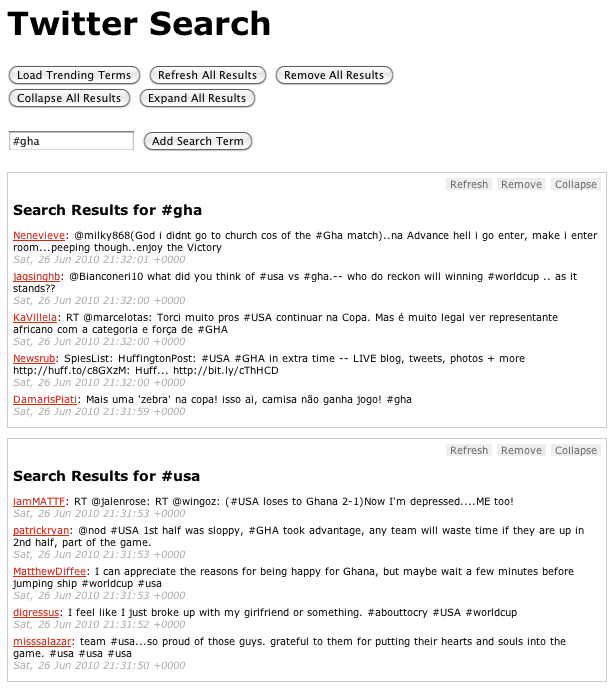
To demonstrate the power of custom events, we’re going to create a simple tool
for searching Twitter. The tool will offer several ways for a user to add
search terms to the display: by entering a search term in a text box, by
entering multiple search terms in the URL, and by querying Twitter for trending
terms.
The results for each term will be shown in a results container; these
containers will be able to be expanded, collapsed, refreshed, and removed,
either individually or all at once.
When we’re done, it will look like this:
```
Twitter Search
Search Results for
```
This gives us a container (#twitter) for our widget, a template for our results
containers (hidden via CSS), and a simple form where users can input a search
term. (For the sake of simplicity, we’re going to assume that our application
is JavaScript-only and that our users will always have CSS.)
There are two types of objects we’ll want to act on: the results containers,
and the Twitter container.
The results containers are the heart of the application. We’ll create a plugin
that will prepare each results container once it’s added to the Twitter
container. Among other things, it will bind the custom events for each
container and add the action buttons at the top right of each container. Each
results container will have the following custom events:
- `refresh` - Mark the container as being in the “refreshing” state, and fire
the request to fetch the data for the search term.
- `populate` - Receive the returned JSON data and use it to populate the container.
- `remove` - Remove the container from the page after the user verifies the
request to do so. Verification can be bypassed by passing true as the second
argument to the event handler. The remove event also removes the term
associated with the results container from the global object containing the
search terms.
- `collapse` - Add a class of collapsed to the container, which will hide the
results via CSS. It will also turn the container’s “Collapse” button into an
“Expand” button.
- `expand` - Remove the collapsed class from the container. It will also turn
the container’s “Expand” button into a “Collapse” button.
The plugin is also responsible for adding the action buttons to the container.
It binds a click event to each action’s list item, and uses the list item’s
class to determine which custom event will be triggered on the corresponding
results container.
```
$.fn.twitterResult = function(settings) {
return this.each(function() {
var $results = $(this),
$actions = $.fn.twitterResult.actions =
$.fn.twitterResult.actions ||
$.fn.twitterResult.createActions(),
$a = $actions.clone().prependTo($results),
term = settings.term;
$results.find('span.search_term').text(term);
$.each(
['refresh', 'populate', 'remove', 'collapse', 'expand'],
function(i, ev) {
$results.bind(
ev,
{ term : term },
$.fn.twitterResult.events[ev]
);
}
);
// use the class of each action to figure out
// which event it will trigger on the results panel
$a.find('li').click(function() {
// pass the li that was clicked to the function
// so it can be manipulated if needed
$results.trigger($(this).attr('class'), [ $(this) ]);
});
});
};
$.fn.twitterResult.createActions = function() {
return $('
').append(
'
Refresh
' +
'
Remove
' +
'
Collapse
'
);
};
$.fn.twitterResult.events = {
refresh : function(e) {
// indicate that the results are refreshing
var $this = $(this).addClass('refreshing');
$this.find('p.tweet').remove();
$results.append('
Loading ...
');
// get the twitter data using jsonp
$.getJSON(
'http://search.twitter.com/search.json?q=' +
escape(e.data.term) + '&rpp=5&callback=?',
function(json) {
$this.trigger('populate', [ json ]);
}
);
},
populate : function(e, json) {
var results = json.results;
var $this = $(this);
$this.find('p.loading').remove();
$.each(results, function(i,result) {
var tweet = '
';
$this.append(tweet);
});
// indicate that the results
// are done refreshing
$this.removeClass('refreshing');
},
remove : function(e, force) {
if (
!force &&
!confirm('Remove panel for term ' + e.data.term + '?')
) {
return;
}
$(this).remove();
// indicate that we no longer
// have a panel for the term
search_terms[e.data.term] = 0;
},
collapse : function(e) {
$(this).find('li.collapse').removeClass('collapse')
.addClass('expand').text('Expand');
$(this).addClass('collapsed');
},
expand : function(e) {
$(this).find('li.expand').removeClass('expand')
.addClass('collapse').text('Collapse');
$(this).removeClass('collapsed');
}
};
```
The Twitter container itself will have just two custom events:
- `getResults` - Receives a search term and checks to determine whether there’s
already a results container for the term; if not, adds a results container
using the results template, set up the results container using the
`$.fn.twitterResult` plugin discussed above, and then triggers the `refresh`
event on the results container in order to actually load the results.
Finally, it will store the search term so the application knows not to
re-fetch the term.
- `getTrends` - Queries Twitter for the top 10 trending terms, then iterates
over them and triggers the `getResults` event for
each of them, thereby adding a results container for each term.
Here's how the Twitter container bindings look:
```
$('#twitter')
.bind('getResults', function(e, term) {
// make sure we don't have a box for this term already
if (!search_terms[term]) {
var $this = $(this);
var $template = $this.find('div.template');
// make a copy of the template div
// and insert it as the first results box
$results = $template.clone().
removeClass('template').
insertBefore($this.find('div:first')).
twitterResult({
'term' : term
});
// load the content using the "refresh"
// custom event that we bound to the results container
$results.trigger('refresh');
search_terms[term] = 1;
}
})
.bind('getTrends', function(e) {
var $this = $(this);
$.getJSON('http://search.twitter.com/trends.json?callback=?', function(json) {
var trends = json.trends;
$.each(trends, function(i, trend) {
$this.trigger('getResults', [ trend.name ]);
});
});
});
```
So far, we’ve written a lot of code that does approximately nothing, but that’s
OK. By specifying all the behaviors that we want our core objects to have,
we’ve created a solid framework for rapidly building out the interface.
Let’s start by hooking up our text input and the “Load Trending Terms” button.
For the text input, we’ll capture the term that was entered in the input and
pass it as we trigger the Twitter container’s `getResults` event. Clicking the
“Load Trending Terms” will trigger the Twitter container’s `getTrends` event:
```
$('form').submit(function(e) {
e.preventDefault();
var term = $('#search_term').val();
$('#twitter').trigger('getResults', [ term ]);
});
$('#get_trends').click(function() {
$('#twitter').trigger('getTrends');
});
```
By adding a few buttons with the appropriate IDs, we can make it possible to
remove, collapse, expand, and refresh all results containers at once, as shown
below. For the remove button, note how we’re passing a value of true to the
event handler as its second argument, telling the event handler that we don’t
want to verify the removal of individual containers.
```
$.each(['refresh', 'expand', 'collapse'], function(i, ev) {
$('#' + ev).click(function(e) { $('#twitter div.results').trigger(ev); });
});
$('#remove').click(function(e) {
if (confirm('Remove all results?')) {
$('#twitter div.results').trigger('remove', [ true ]);
}
});
```
### Conclusion
Custom events offer a new way of thinking about your code: they put the
emphasis on the target of a behavior, not on the element that triggers it. If
you take the time at the outset to spell out the pieces of your application, as
well as the behaviors those pieces need to exhibit, custom events can provide a
powerful way for you to “talk” to those pieces, either one at a time or en
masse. Once the behaviors of a piece have been described, it becomes trivial to
trigger those behaviors from anywhere, allowing for rapid creation of and
experimentation with interface options. Finally, custom events can enhance code
readability and maintainability, by making clear the relationship between an
element and its behaviors.
You can see the full application at `demos/custom-events.html` and `demos/js/custom-events.js` in the sample code.