
This chapter describes the visual rendering model, how user agents process the document tree for visual media.
In the visual rendering model, each element in the document tree generates zero or more rectangular boxes that are then rendered. Some boxes belong to the "normal flow" of boxes while others are "outside the flow". A box in the normal flow has a preceding box in the normal flow (unless it is the first box) and a following box in the normal flow (unless it is the last box).
Most boxes establish a containing block whose edges serve as references for the layout of descendant boxes (see the next chapter for details). In the CSS visual rendering model, a box establishes reference edges for its descendants and is itself positioned with respect to its containing block. A box is not confined by its containing block -- it is positioned with respect to its edges and may even overflow those edges. When a box is floated inside a containing block, layout of boxes in the containing block is also affected by the edges of those floating boxes.
The box model describes the generation of boxes. The layout of these boxes is governed by:
The properties defined in this chapter apply to both continuous media and paged media. However, the meanings of the margin properties vary when applied to paged media (see the page model for details).
The next chapter supplies the details of the visual rendering model. However, the model does not specify all aspects of formatting (e.g., it does not specify a letter-spacing algorithm). Conforming user agents may behave differently for those formatting issues not covered by this specification.
User agents for continuous media generally offer users a viewport (a window or other viewing area on the screen) through which users consult a document. User agents may change the document's layout when the viewport is resized (see the initial containing block). When the viewport is smaller than the document's containing block, the user agent should offer a scrolling mechanism. There is at most one viewport per canvas, but user agents may offer users several views of a document.
The CSS box model describes how rectangular boxes are generated for elements in the document tree. The page box is a special kind of box that is described in detail on the section on paged media.
Block-level elements are those elements of the document language that, by default, are formatted visually as blocks (e.g., paragraphs). Several values of the 'display' property make an element block-level: 'block', 'list-item', 'compact' and 'run-in' (part of the time; see compact and run-in boxes), and 'table'.
Most block-level elements generate block boxes, but some elements also produce inline anonymous boxes.
Inline-level elements are those elements of the document language that do not form new blocks of content (e.g., emphasized pieces of text within a paragraph, inline images, etc.). Several values of the 'display' property make an element inline: 'inline', 'inline-table', 'compact' and 'run-in' (part of the time; see compact and run-in boxes). Inline-level elements generate inline boxes.
A block box acts as a containing block for its descendant boxes, which may be both block boxes and inline boxes. (One may think of anonymous block boxes springing into existence to surround "naked" inline content between block content). Sibling block boxes participate in a block formatting context.
An inline box participates in an inline formatting context with its siblings and children.
The values of this property have the following meanings:
Please note that a display of 'none' does not create an invisible box; it creates no box at all. CSS includes mechanisms that enable an element to generate boxes in the rendering structure that affect formatting but are not visible themselves. Please consult the section on visibility for details.
Note that although the initial value of 'display' is 'inline', rules in the user agent's default style sheet may override this value. See the sample style sheet for HTML 4.0 in the appendix.
Here are some examples of the 'display' property:
  P   { display: block }
  EM  { display: inline }
  LI  { display: list-item }
  IMG { display: none }      /* Don't display images */
Conforming HTML user agents may ignore the 'display' property when specified in author and user style sheets but must specify a value for it in the default style sheet.
Properties apply to run-in and compact boxes based on their final status (inline-level or block-level). For example, the 'white-space' property only applies if the box behaves like a block box.
A compact box behaves as follows:
The compact box is positioned in the margin as follows: it is outside (to the left or right) of the first line box of the block, but it affects the calculation of that line box's height. The 'vertical-align' property of the compact box determines the vertical position of the compact box relative to that line box. The horizontal position of the compact box is always in the margin of the block box, as far to the outside as possible.
An element that cannot be rendered on one line cannot be placed in the margin of the following block. For example, a 'compact' element in HTML that contains a <BR> element will always be rendered as a block box (assuming the default style for BR, which inserts a newline). For placing multi-line texts in the margin, the 'float' property is often more adequate.
The following example illustrates a compact box.
<!DOCTYPE HTML PUBLIC "-//W3C//DTD HTML 4.0 Transitional//EN">
<HTML>
  <HEAD>
    <TITLE>A compact box example</TITLE>
    <STYLE type="text/css">
      DT { display: compact }
      DD { margin-left: 4em }
    </STYLE>
  </HEAD>
  <BODY>
    <DL>
      <DT>Short
        <DD><P>Description goes here.
      <DT>too long for the margin
        <DD><P>Description goes here.
    </DL>
  </BODY>
</HTML>
This example might be rendered as:
short    Description goes here

too long for the margin
         Description goes here
The 'text-align' property can be used to align the compact element inside the margin: against the left edge of the margin ('left'), against the right edge ('right'), or centered in the margin ('center'). The value 'justify' doesn't apply, and is handled as either 'left' or 'right', depending on the 'direction' of the block-level element in whose margin the compact element is rendered. ('left' if the direction is 'ltr', 'right' if it is 'rtl'.)
Please consult the section on generated content for information about how compact boxes interact with generated content.
A run-in box behaves as follows:
A 'run-in' box is useful for run-in headers, as in this example:
<HTML>
  <HEAD>
    <TITLE>A run-in box example</TITLE>
    <STYLE type="text/css">
      H3 { display: run-in }
    </STYLE>
  </HEAD>
  <BODY>
    <H3>A run-in heading.</H3>
    <P>And a paragraph of text that
       follows it.
  </BODY>
</HTML>
This example might be rendered as:
  A run-in heading. And a
  paragraph of text that
  follows it.
The properties of the run-in element are inherited from its parent in the source tree, not from the block box it visually becomes part of.
Please consult the section on generated content for information about how run-in boxes interact with generated content.
Each box has a content area (e.g., text, an image, etc.) and optional surrounding padding, border, and margin areas; the size of each area is specified by properties defined in the next chapter. The following diagram shows how these areas relate and the terminology used to refer to pieces of margin, border, and padding:
The margin, border, and padding can be broken down into left, right, top, and bottom segments (e.g., in the diagram, "LM" for left margin, "RP" for right padding, "TB" for top border, etc.
The perimeter of each of the four areas (content, padding, border, and margin) is called an "edge", so each box has four edges:
Each edge may be broken down into a left, right, top, and bottom edge.
The dimensions of the content area of a box -- the content width and content height -- may be established in one of several ways:
The box width (height) is given by the sum of the content width (height), the padding, the border, and the margin.
Note that although top and bottom margins, borders, and padding specified for inline-level elements do not enter into line box height calculations, but are visible (inside and outside line boxes).
Note that there are no properties to set the color of margins and padding; margins are always transparent and padding areas always use the background of the element itself. The background of an element extends to the padding edge of the box it generates.
<HTML>
  <HEAD>
    <STYLE type="text/css">
      UL {
        background: orange;
        margin: 12px 12px 12px 12px;
        padding: 3px 3px 3px 3px;
                                     /* No borders set */
      }
      LI {
        color: white;                /* text color is white */
        background: blue;            /* Content, padding will be blue */
        margin: 12px 12px 12px 12px;
        padding: 12px 0px 12px 12px; /* Note 0px padding right */
        list-style: none             /* no glyphs before a list item */
                                     /* No borders set */
      }
      LI.withborder {
        border-style: dashed;
        border-width: medium;        /* sets border width on all sides */
        border-color: green;
      }
    </STYLE>
  </HEAD>
  <BODY>
    <UL>
      <LI>First element of list
      <LI class="withborder">Second element of list is longer
           to illustrate wrapping.
    </UL>
  </BODY>
</HTML>
results in a document tree with (among other relationships) a UL element that has two LI children.
The first of the following diagrams illustrates what this example would produce. The second illustrates the relationship between the margins, padding, and borders of the UL elements and those of its children LI elements.

Note that:
In CSS2, a box may be laid out according to three positioning schemes
The primary difference between a floating box and one that is absolutely positioned is that absolute positioning has no impact on the flow of later siblings; later siblings are laid out as though the absolutely positioned box did not exist at all. Later siblings of floating boxes flow with respect to the final position of the floating box.
The 'position' and 'float' properties determine which CSS2 positioning algorithms are used to calculate the coordinates of a box.
The values of this property have the following meanings:
  @media screen {
    H1#first { position: fixed }
  }
  @media print {
    H1#first { position: normal }
  }
Note. The value 'normal' causes some user agents to ignore the 'left' and 'top' properties. To ensure that values of 'left' and 'top' are taken into account, authors should explicitly set the value of the 'position' property to 'relative'.
The position of a relatively or absolutely (including fixed) positioned box is established by four properties:
This property specifies how far a box's top content edge is offset below the top edge of the box's containing block.
This property specifies how far a box's right content edge is offset to the left of the right edge of the box's containing block.
This property specifies how far a box's bottom content edge is offset above the bottom of the box's containing block.
This property specifies how far a box's left content edge is offset to the right of the left edge of the box's containing block.
The values for the four properties have the following meanings:
For absolutely positioned boxes, the offsets are with respect to the box's containing block. For relatively positioned boxes, the offsets are with respect to the outer edges of the box itself (i.e., the box is normally positioned, then offset from that position according to these properties).
Absolutely positioned boxes do not have margins established by the margin properties, though they do have padding and borders.
For more information about the width and height of boxes, please consult the sections on box width calculations and box height calculations respectively.
Boxes in the normal flow belong to a formatting context, which may be block or inline, but not both simultaneously.
Block boxes participate in a block formatting context.
Inline boxes participate in an inline formatting context.
In a document like this:
<DIV>
  Some text
  <P>Some more text
</DIV>
(and assuming the DIV and the P both have 'display: block'), the DIV appears to have both inline content and block content. To make it easier to define the formatting, we assume that there is an anonymous block box around "Some text".

Diagram showing the three boxes, of which one is anonymous, for the example above
In other words: if a block box (such as that generated for the DIV above) has another block box inside it (such as the P above), then we force it to have only block boxes inside it, by wrapping any inline boxes in an anonymous block box.
The properties of these anonymous boxes are inherited from the enclosing non-anonymous box (in the example: the one for DIV). Non-inherited properties have their initial value. For example, the font of the anonymous box is inherited from the DIV, but the margins will be 0.
In a document like this:
<P>Some <EM>emphasized</em> text
The P generates a block box, with several inline boxes inside it. The box for "emphasized" is an inline box generated by an inline element (EM), but the other boxes ("Some" and "text") are inline boxes generated by a block-level element (P). The latter are called anonymous inline boxes, because they don't have an associated inline-level element.
Such anonymous inline boxes inherit inheritable properties from their block parent box. Non-inherited properties have their initial value.
In the example, the color of the anonymous initial boxes is inherited from the P, but the background is transparent.
If it is clear from the context which type of anonymous box is meant, both anonymous inline boxes and anonymous block boxes are simply called anonymous boxes in his specification.
There are more types of anonymous boxes in the table context.
In a block formatting context, boxes are laid out one after the other, vertically, beginning at the top of a containing block. The vertical distance between two sibling boxes is determined by the 'margin' properties. Vertical margins between adjacent block boxes collapse.
To lay out boxes horizontally in CSS2, authors may declare them to be inline, or position them (using floats or absolute positioning).
For information about page breaks in paged media, please consult the section on allowed page breaks.
In an inline formatting context, boxes are laid out horizontally, one after the other, beginning at the top of a containing block. Horizontal margins, borders, and padding are respected between these boxes. They may be aligned vertically in different ways: their bottoms or tops may be aligned, or the baselines of text within them may be aligned. The rectangular area that contains the boxes that form a line is called a line box. The margin between the first inline box in a line box and the near line box edge is respected; the same holds for the last inline box and the opposite line box edge.
The width of a line box is determined by a containing block. The height of a line box is determined by the rules given in the section on line height calculations. A line box is always tall enough for all of the boxes it contains. However, it may be taller than the tallest box it contains (if, for example, boxes are aligned so that baselines line up). When the height of a box B is less than the height of the line box containing it, the vertical alignment of B within the line box is determined by the 'vertical-align' property.
When several inline boxes cannot fit within a single line box, they are distributed among two or more vertically-stacked line boxes. Thus, a paragraph is a vertical stack of line boxes. Line boxes are stacked with no vertical separation and they never overlap.
Line boxes in the same inline formatting context generally have the same width (that of the containing block) but may vary in width if available horizontal space is reduced due to floats. Line boxes in the same inline formatting context generally vary in height (e.g., one line might contain an image while the others contain only text).
When the total width of the boxes on a line is less than the width of the line box containing them, their horizontal alignment within the line box is determined by the 'text-align' property. If that property has the value 'justify', the user agent may stretch the inline boxes as well.
Since a box may not exceed the width of a line box, long boxes are split into several boxes and these boxes distributed across several line boxes. When a box is split, margins, borders, and padding have no visual effect at the end of the first line box or at the beginning of the next line box.
Inline boxes may also be split into several boxes in the same line box due to bidirectional text processing.
Here is an example of inline box construction. The following paragraph (created by the HTML block-level element P) contains anonymous text interspersed with the elements EM and STRONG:
  <P>Several <EM>emphasized words</EM> appear
  <STRONG>in this</STRONG> sentence, dear.</P>
The P element generates a block box that contains five inline boxes, three of which are anonymous:
To format the paragraph, the user agent flows the five boxes into line boxes. Since the parent box in normal flow acts as the containing block for an inline box, the width of the P box determines the width of these line boxes. If the width of P is sufficient, all the inline boxes will fit into a single line box:
  Several emphasized words appear
  in this sentence, dear.
If the boxes do not fit within a single line box, they will be split up and distributed across several line boxes. The previous paragraph might be split as follows:
  Several emphasized
  words appear in this
  sentence, dear.
or like this:
Several emphasized words appear in this sentence, dear.
In the previous example, the EM box was split into two EM boxes (call them "split1" and "split2"). Therefore, margins, borders, padding, or text decorations have no visible effect after split1 or before split2.
Consider the following example:
<HTML>
  <HEAD>
    <TITLE>Example of inline flow on several lines</TITLE>
    <STYLE type="text/css">
      EM {
        padding: 2px;
        margin: 1em;
        border-width: medium;
        border-style: dashed;
        line-height: 2.4em;
      }
    </STYLE>
  </HEAD>
  <BODY>
    <P>Several <EM>emphasized words</EM> appear here.</P>
  </BODY>
</HTML>
Depending on the width of the P, the boxes may be distributed as follows:

Note that with a small line height, the padding and borders around text in different lines may overlap.
The characters in certain scripts are written from right to left. In some languages, in particular those written with the Arabic or Hebrew script, and in some mixed-language contexts, text in a single (visually displayed) block can therefore appear with mixed directionality. This phenomenon is called bidirectionality, or "bidi" for short. For an introduction to bidirectionality issues, please consult the HTML 4.0 specification ([[HTML40]], section 8.2).
The Unicode ([[UNICODE]]) specification assigns directionality to characters and defines a complex algorithm for determining the proper directionality of text. The 'direction' and 'unicode-bidi' properties allow authors to specify how the elements and attributes of a document language correspond to units of the Unicode bidi algorithm.
Because the directionality of a text depends on the structure and semantics of the document language, these properties should in most cases be used only by designers of document type descriptions (DTDs), or authors of special documents. A typical exception would be to override bidi behavior in a user agent if that user agent transliterates Yiddish (usually written with Hebrew letters) to Latin letters at the user's request.
If a document contains right-to-left characters, and if the user agent displays these characters (with appropriate glyphs, not arbitrary substitutes such as a question mark, a hex code, a black box, etc.), the user agent must apply the bidirectional algorithm. This seemingly one-sided requirement reflects the fact that, although not every Hebrew or Arabic document contains mixed-directionality text, such documents are much more likely to contain left-to-right text (e.g., numbers, text from other languages) than are documents written in left-to-right languages.
Conforming HTML user agents may ignore the 'direction' and 'unicode-bidi' properties in author and user style sheets but must behave as if they used the style sheet fragment given below.
This property specifies the direction of inline box flow, embedded text direction (see 'unicode-bidi'), table column layout, and content overflow.
Values for this property have the following meanings:
The writing direction of text within an inline box depends on two factors:
User agents following the bidirectional algorithm will display characters in the correct writing direction automatically, except when elements with reversed writing direction are embedded more than one level deep. In such cases, authors must assist the user agent by signaling that an element opens a new level of embedding with respect to the bidirectional algorithm.
Thus, values for 'unicode-bidi' have the following meanings:
For the 'direction' property to have any effect on inline-level elements, the 'unicode-bidi' property must have as value either 'embed' or 'override'.
The following example shows an XML document with bidirectional text. It illustrates an important design principle: DTD designers should take bidi into account both in the language proper (elements and attributes) and in any accompanying style sheets. The style sheets should be designed so that bidi rules are separate from other style rules. The bidi rules should not be overridden by other style sheets so that the language's bidi behavior is preserved.
In this example, lowercase letters stand for inherently left-to-right characters and uppercase letters represent inherently right-to-left characters:
<HEBREW>
  <PAR>HEBREW1 HEBREW2 english3 HEBREW4 HEBREW5</PAR>
  <PAR>HEBREW6 <EMPH>HEBREW7</EMPH> HEBREW8</PAR>
</HEBREW>
<ENGLISH>
  <PAR>english9 english10 english11 HEBREW12 HEBREW13</PAR>
  <PAR>english14 english15 english16</PAR>
  <PAR>english17 <HE-QUO>HEBREW18 english19 HEBREW20</HE-QUO></PAR>
</ENGLISH>
Since this is XML, the style sheet is responsible for setting the writing direction. This is the style sheet:
/* Rules for bidi */
HEBREW, HE-QUO  {direction: rtl; unicode-bidi: embed}
ENGLISH         {direction: ltr; unicode-bidi: embed}

/* Rules for presentation */
HEBREW, ENGLISH, PAR  {display: block}
EMPH                  {font-weight: bold}
The HEBREW element is a block with a right-to-left base direction, the ENGLISH element is a block with a left-to-right base direction. The PARs are blocks that inherit the base direction from their parents. Thus, the first two PARs are read starting at the top right, the final three are read starting at the top left.
The EMPH element is inline-level, and since its value for 'unicode-bidi' is 'normal' (the initial value), it has no effect on the ordering of the text. The HE-QUO element, on the other hand, creates an embedding.
The rendering of this text might look like this if the line length is long:
               5WERBEH 4WERBEH english3 2WERBEH 1WERBEH

                                8WERBEH 7WERBEH 6WERBEH

english9 english10 english11 13WERBEH 12WERBEH

english14 english15 english16

english17 20WERBEH english19 18WERBEH
Note that the HE-QUO embedding causes HEBREW18 to be to the right of english19.
If lines have to be broken, it might be more like this:
       2WERBEH 1WERBEH
  -EH 4WERBEH english3
                 5WERB

   -EH 7WERBEH 6WERBEH
                 8WERB

english9 english10 en-
glish11 12WERBEH
13WERBEH

english14 english15
english16

english17 18WERBEH
20WERBEH english19
Because HEBREW18 must be read before english19, it is on the line above english19. Just breaking the long line from the earlier rendering would not have worked. Note also that the first syllable from english19 might have fit on the previous line, but hyphenation of left-to-right words in a right-to-left context, and vice versa, is usually suppressed to avoid having to display a hyphen in the middle of a line.
Note that the default style sheet "states" that the HEBREW, HE-QUO, and ENGLISH elements all create embeddings. This bidi behavior should be preserved even if a user decides to change 'display: inline' for these elements. The rules that specify 'unicode-bidi: embed' achieve this as long as they are not overridden by user rules.
The 'direction' property determines the direction of several types of flow:
In order to ensure the proper application of the bidirectional algorithm, inline boxes (including anonymous inline boxes) must be constructed, split up if necessary, and flowed so that the final order of the characters on each line conforms to the Unicode bidirectional algorithm. This means that left-to-right flow and right-to-left flow can occur within the same element. Non-textual entities such as images are treated as neutral characters, unless their 'unicode-bidi' property has a value other than 'normal', in which case they are treated as strong characters in the 'direction' specified for the element.
For instance, suppose that in the middle of a paragraph of Hebrew (right-to-left) text, we embed an English quotation:
<P lang="he">WERBEH WERBEH WERBEH WERBEH WERBEH
WERBEH WERBEH WERBEH WERBEH WERBEH
WERBEH WERBEH WERBEH <SPAN lang="en">English
quote here</SPAN> WERBEH WERBEH</>
The right-to-left flow of Hebrew text stops at the asterisk (*) in the following diagram:
WERBEH WERBEH WERBEH WERBEH WERBEH
WERBEH WERBEH WERBEH WERBEH WERBEH
             *WERBEH WERBEH WERBEH
While inline flow continues right-to-left after the asterisk, the English text is laid out left-to-right. Thus, successive letters will fill in the available space as follows:
            E *WERBEH WERBEH WERBEH
           En *WERBEH WERBEH WERBEH
          Eng *WERBEH WERBEH WERBEH
         Engl *WERBEH WERBEH WERBEH
        Engli *WERBEH WERBEH WERBEH
       Englis *WERBEH WERBEH WERBEH
Etc., onto the following line:
English quote *WERBEH WERBEH WERBEH
                                  h

English quote *WERBEH WERBEH WERBEH
                                 he

English quote *WERBEH WERBEH WERBEH
                                her

English quote *WERBEH WERBEH WERBEH
                               here
Hebrew text continues to flow right-to-left at the end of the English text.
In order to preserve the expected behavior of HTML 4.0 elements, their bidirectionality must be preserved however they are rendered. For example, people expect paragraphs to behave like a block with respect to bidirectionality, so even if a paragraph is displayed as an 'inline' element, it must introduce a new level of bidi embedding. To achieve this, all HTML 4.0 ([[HTML40]]) block elements must behave as though they had a value of 'embed' for 'unicode-bidi', whatever the value of the 'display' property.
The following rules capture the remaining bidi semantics of HTML 4.0:
  BDO[DIR="ltr"]  { direction: ltr; unicode-bidi: bidi-override }
  BDO[DIR="rtl"]  { direction: rtl; unicode-bidi: bidi-override }

  *[DIR="ltr"] { direction: ltr; unicode-bidi: embed }
  *[DIR="rtl"] { direction: rtl; unicode-bidi: embed }
Once a box has been assigned a position according to the normal flow, it may be shifted relative to this position. This is called relative positioning. Offsetting a box in this way has no effect on the following box: it is positioned as if the preceding box were not offset and it is not repositioned after the offset is applied. This implies that relative positioning may cause boxes to overlap.
Relatively positioned boxes keep their normal flow size, including line breaks and the space originally reserved for them. A relatively positioned box establishes a new containing block for descendant boxes.
A relatively positioned box is generated when the 'position' property for an element has the value 'relative'. The offset is specified by the 'top', 'bottom', 'left', and 'right' properties.
Dynamic movement of relatively positioned boxes can produce animation effects in scripting environments (see the 'visibility' property). Relative positioning may also be used as a general form of superscripting and subscripting except that line height is not automatically adjusted to take the positioning into consideration. See the description of line height calculations for more information.
Examples of relative positioning are provided in the section comparing normal, relative, floating, and absolute positioning.
A floating box may be positioned at the right or left edge of a containing block (the 'float' property). Content may flow next to a floating box or be forced to flow after it (see the 'clear' property).
This property specifies whether a box should float to the left, right, or not at all. It may be set for elements that generate boxes that are not positioned absolutely (i.e., not 'absolute' or 'fixed').
A floating box is given a position and height according to the normal flow. It is then taken out of the flow and shifted to the left or right until its outer edge is flush with the current left or right edge, which may be established by a containing block or another floated box. Floating boxes do not participate in line height calculations, and the computed value of the 'width' is '0' unless assigned explicitly.
User agents take the outer edge of a floating box into account when positioning boxes on the same lines as the float. The outer edge of a float becomes the current edge for flowed or floated boxes to the left or right side. The margins of floating boxes never collapse with margins of adjacent boxes.
The values of this property have the following meanings:
The following rule positions all IMG elements with class="icon" along the left side of the parent element:
  IMG.icon {
    float: left;
    margin-left: 0;
  }
The following HTML source:
<HTML>
  <HEAD>
    <STYLE type="text/css">
      IMG { float: left }
      BODY, P, IMG { margin: 2em }
    </STYLE>
  </HEAD>
  <BODY>
    <P><IMG src=img.gif alt="This image will illustrate floats">
       Some sample text that has no other...
  </BODY>
</HTML>
might be formatted as:

Note that the margin of the P element encloses the floating IMG element and that the vertical margins do not collapse.
When set for an element generating a box B, this property indicates which sides of B may not be adjacent to a floating box. This property may only be specified for block-level elements. For compact and run-in boxes, this property applies to the final block box to which the compact or run-in box belongs.
Values have the following meanings:
The following style rule means that no H1 element may have a floating element to its left; this means that H1 elements will be positioned below any floating box.
H1 { clear: left }
A floating box B is subject to several constraints:
Please consult the section on floating constraints for additional constraints.
Like other boxes, an absolutely positioned element is positioned with respect to a containing block. It also establishes a new containing block for descendant boxes. However, the contents of an absolutely positioned element do not flow around any other boxes. They may or may not obscure the contents of another box, depending on the z-order of the overlapping boxes.
Fixed positioning is a variant of absolute positioning. The only difference is that for a fixed positioned box, the containing block is established by the viewport.
For continuous media, fixed boxes do not move when the document is scrolled. In this respect, they are similar to fixed background images.
For paged media, boxes with fixed positions are repeated on every page. This is useful for placing, for instance, a signature at the bottom of each page.
Authors may use fixed positioning to create frame-like presentations. Consider the following frame layout:
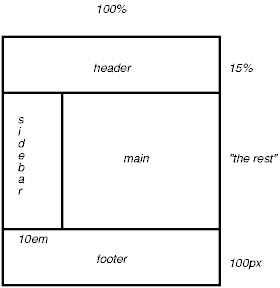
This might be achieved with the following HTML document and style rules:
<HTML>
  <HEAD>
    <TITLE>A frame document with CSS2</TITLE>
    <STYLE type="text/css">
      #header {
        position: fixed;
        width: 100%;
        height: 15%;
        top: 0;
        right: 0;
        bottom: auto;
        left: 0;
      }
      #sidebar {
        position: fixed;
        width: 10em;
        height: auto;
        top: 15%;
        right: auto;
        bottom: 100px;
        left: 0;
      }
      #main {
        position: fixed;
        width: auto;
        height: auto;
        top: 15%;
        right: 0;
        bottom: 100px;
        left: 10em;
      }
      #footer {
        position: fixed;
        width: 100%;
        height: 100px;
        top: auto;
        right: 0;
        bottom: 0;
        left: 0;
      }
    </STYLE>
  </HEAD>
  <BODY>
    <DIV id="header"> ...  </DIV>
    <DIV id="sidebar"> ...  </DIV>
    <DIV id="main"> ...  </DIV>
    <DIV id="footer"> ...  </DIV>
  </BODY>
</HTML>
When specified for the same elements, the three properties that affect box generation and layout -- 'display', 'position', and 'float' -- interact according to the following precedences (highest to lowest):
Note on scripting and layout. CSS2 does not specify layout behavior when values for these properties are changed by scripts. For example, what happens when an element having 'width: auto' is repositioned? Do the contents reflow, or do they maintain their original formatting? The answer is outside the scope of this document, and such behavior is likely to differ in initial implementations of CSS2.
To illustrate the relationship between normal flow, relative positioning, floats, and absolute positioning, we provide a series of examples based on the following HTML fragment:
<HTML>
  <HEAD>
    <TITLE>Comparison of positioning schemes</TITLE>
  </HEAD>
  <BODY>
    <P>Beginning of body contents.
      <SPAN id="outer"> Start of outer contents.
      <SPAN id="inner"> Inner contents.</SPAN>
      End of outer contents.</SPAN>
      End of body contents.
    </P>
  </BODY>
</HTML>
The final positions of boxes generated by the outer and inner elements vary in each example. In each illustration, the numbers to the left of the illustration indicate the normal flow position of the double-spaced (for clarity) lines.
Consider the following CSS declarations for outer and inner that don't alter the normal flow of boxes:
  #outer { color: red }
  #inner { color: blue }
This results in something like the following:

To see the effect of relative positioning, consider the following CSS rules:
  BODY { line-height: 200% }
  #outer { position: relative; top: -12px; color: red }
  #inner { position: relative; top: 12px; color: blue }
First, the outer text is flowed into its normal flow position and dimensions at the end of line 1. Then, the inline boxes containing the text (distributed over three lines) are shifted as a unit upwards by 12px.
The contents of inner, as a child of outer, would normally flow immediately after the words "of outer contents" (on line 1.5). However, the inner contents are themselves offset relative to the outer contents by 12px downwards, back to their original position on line 2.
Note that the content following outer is not affected by the relative positioning of outer.
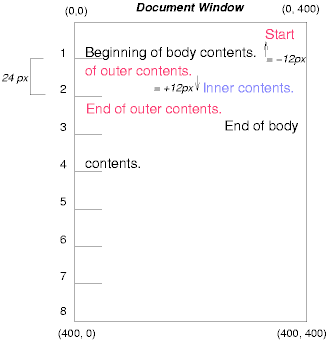
Note also that if the relative positioning of outer were -24px, the text of outer and the body text would have overlapped.
Now consider the effect of floating the inner element's text to the right by means of the following rules:
  #outer { color: red }
  #inner { float: right; width: 130px; color: blue }
First, the inner box (whose width has been set explicitly) is floated to the right margin. Then, the text of the outer element that follows the inner element text flows in the space vacated by the inner box. This flow respects the new right margin established by the left border of the inner box.

To show the effect of the 'clear' property, we add a sibling element to the example:
<HTML>
  <HEAD>
    <TITLE>Comparison of positioning schemes II</TITLE>
  </HEAD>
  <BODY>
    <P>Beginning of body contents.
      <SPAN id=outer> Start of outer contents.
      <SPAN id=inner> Inner contents.</SPAN>
      <SPAN id=sibling> Sibling contents.</SPAN>
      End of outer contents.</SPAN>
      End of body contents.
    </P>
  </BODY>
</HTML>
The following rules:
  #inner { float: right; width: 130px; color: blue }
  #sibling { color: red }
cause the inner box to float to the right and the text of the sibling element to flow in the vacated space:

However, if the 'clear' property on the sibling element is set to 'right' (i.e., the generated sibling box will not accept being positioned next to floating boxes to its right), the sibling box is moved below the float:
  #inner { float: right; width: 130px; color: blue }
  #sibling { clear: right; color: red }
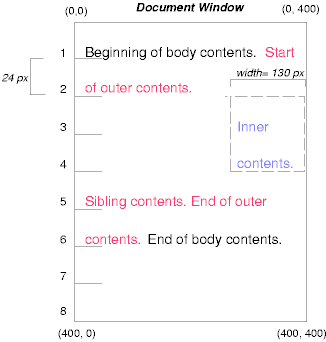
Finally, we consider the effect of absolute positioning. Consider the following CSS declarations for outer and inner:
  #outer {
    position: absolute;
    top: 200px;
    left: 200px;
    width: 200px;
    color: red;
  }
  #inner { color: blue }
which cause the top of the outer box to be positioned with respect to the containing block (which we suppose is established by the initial containing block). The top side of the outer box is 200px from the top of the containing block and the left side is 200px from the left side. The child box of outer is flowed normally with respect to its parent.

Note that because outer has been absolutely positioned, it establishes a new containing block for descendant boxes (there aren't any in this example).
The following example shows an absolutely positioned box that is a child of a relatively positioned box. Although the parent outer box is not actually offset, setting its 'position' property to 'relative' causes its box to serve as the containing block for any descendant boxes. Since the outer box is an inline box that is split across several lines, only the first box (whose upper left-hand corner is designated by a "@" in the illustration below) establishes the containing block for the descendants.
  #outer {
    position: relative;
    color: red
  }
  #inner {
    position: absolute;
    top: 200px;
    left: -100px;
    height: 130px;
    width: 130px;
    color: blue;
  }
This results in something like the following:

The following rules don't establish a new positioning context for inner:
  #outer { color: red }
  #inner {
    position: absolute;
    top: 200px;
    left: -100px;
    height: 130px;
    width: 130px;
    color: blue;
  }
but cause the inner box to be positioned with respect to the containing block (which we assume here is initial containing block).

Relative and absolute positioning may be used to implement change bars, as shown in the following example. We use a value of 'auto' for the 'top' property, which results in the box being placed at the "current" location, just as if the box were being flowed into that space. The following HTML text:
<P style="position: relative; margin-right: 10px; left: 10px;">
I used two red hyphens to serve as a change bar. They
will "float" to the left of the line containing THIS
<SPAN style="position: absolute; top: auto; left: 0px; color: red;">--</SPAN>
word.</P>
might result in something like:
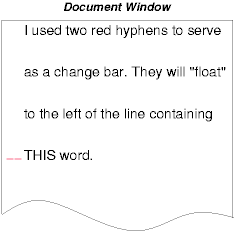
In the following sections, the expression "in front of" means closer to the user as the user faces the screen.
CSS allows authors to specify the position of a box along three axes. The stack level of an element refers to the position of boxes it generates in front of or behind other boxes. The stack level is particularly relevant to boxes that overlap visually.
The stack level of an element may be determined in two ways:
The 'z-index' property is used to specify the stacking order of boxes outside the normal flow. An element for which this property is set establishes a stacking context in which its own 'z-index' is 0.
The integer value of this property has the following meaning:
The relative z-order of two elements that are neither siblings nor parent/child can be determined by evaluation of the previous rules for both elements' ancestors.
In the following example, the order of the elements, listed back-to-front is: "image", "text2", and "text1".
<!DOCTYPE HTML PUBLIC "-//W3C//DTD HTML 4.0 Transitional//EN">
<HTML>
  <HEAD>
    <TITLE>Z-order positioning</TITLE>
    <STYLE type="text/css">
      .pile {
        position: absolute;
        left: 2in;
        top: 2in;
        width: 3in;
        height: 3in;
      }
    </STYLE>
  </HEAD>
  <BODY>
    <P>
      <IMG alt="A butterfly image"
      src="butterfly.gif"
      class="pile"
      id="image"
      style="z-index: 1">

    <DIV class="pile" id="text1" style="z-index: 3">
      This text will overlay the butterfly image.
    </DIV>

    <DIV class="pile" id="text2" style="z-index: 2">
      This text will underlay text1, but overlay the butterfly image
    </DIV>
  </BODY>
</HTML>
This example demonstrates the notion of transparency. The default behavior of a box is to allow boxes behind it to be visible through transparent areas in its content. In the example, each box transparently overlays the boxes below it. This behavior can be overridden by using one of the existing background properties.